How to create custom coupons for your Web3 TLD
Custom Coupons let Web3 TLD owners create promo codes that apply discounts to domains under their TLD. Coupons can be shared to support sales activities.
Custom Coupons let Web3 TLD owners create promo codes that apply discounts to domains under their TLD. Coupons are created inside a campaign and can be shared externally (for example via newsletters or partners) to support sales activity under your extension.
Requirement: To access Custom Coupons, you must have Reseller Tools enabled on your Web3 TLD. Reseller Tools is an additional option, separate from the Royalties option.
What Are Custom Coupons?
A Custom Coupon is a promo code linked to your Web3 TLD that can apply a discount (up to 50%) at checkout, based on the campaign rules you set.
Typical settings include:
- Discount percentage (up to 50%)
- Usage limits (optional)
- Cart minimum (optional)
- Max discount (optional)
- Start and end dates
- Active or inactive status
Royalties and External Sales (If Enabled)
If your TLD has Royalties enabled, you may earn royalties from external sales under your TLD, according to your settings. Coupons can be used as part of external promotions, but royalties depend on your Royalties configuration.
How to Create a Custom Coupon
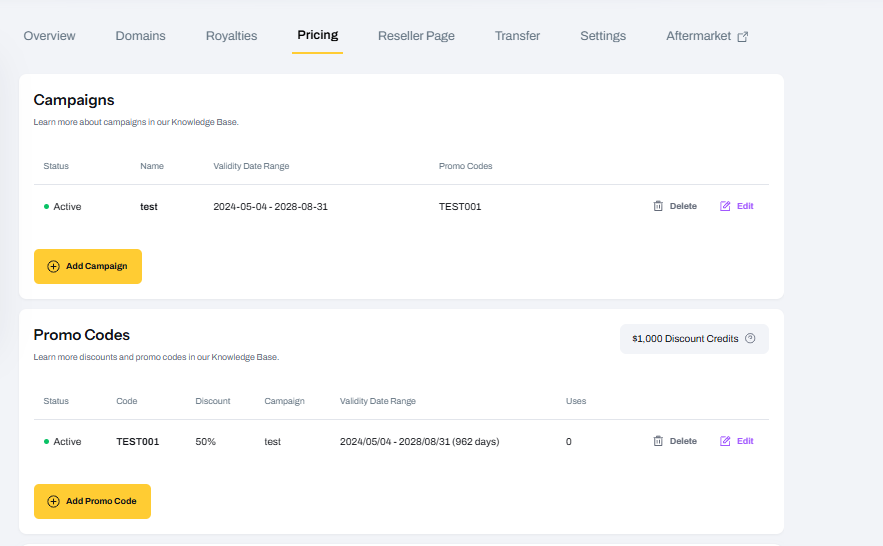
Step 1: Create a Campaign
All promo codes must be tied to a campaign. Campaigns help you organize coupons and define timing and usage rules.
- Go to the Pricing/Campaigns section in your Freename dashboard.
- Click Add Campaign.
- Enter a campaign name (for example, CRYPTO50).
- Set validity dates.
- Configure whether multiple uses are allowed (if available).
Set the campaign status to Active, then save.
Step 2: Create a Promo Code
Once your campaign is active:
- Go to the Promo Codes section.
- Click Add Promo Code.
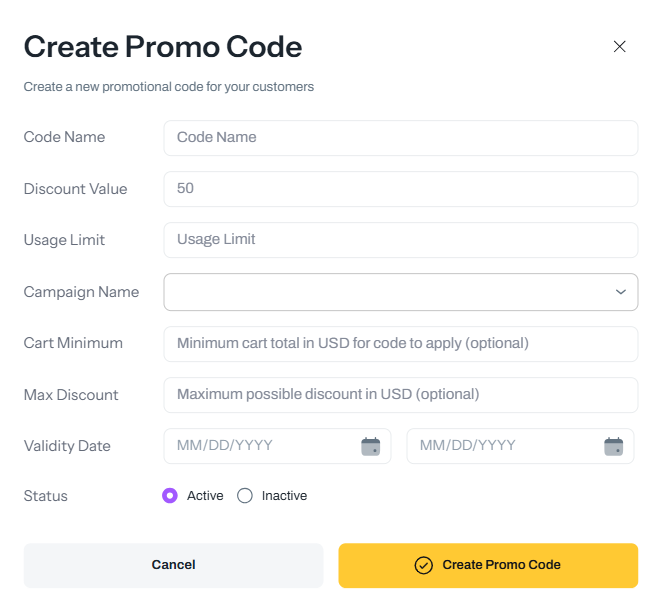
- Enter the promo code name (for example, NFTDEAL).
- Set the discount value (up to 50%).
- Set optional limits and rules (usage limit, cart minimum, max discount, coupon validity dates).
- Choose the campaign from the dropdown.
- Set the promo code status to Active and save.
Your coupon is then ready to share.
Where to Share Your Coupon
You can share your coupon code and the relevant landing page link through:
- Email newsletters
- Community channels
- Partner promotions
- Your website or blog
FAQ
1) Do I need anything enabled to use Custom Coupons?
Yes. You need Reseller Tools enabled on your Web3 TLD to access this functionality. Reseller Tools is a separate option from Royalties.
2) Do I need Royalties enabled to create coupons?
No. Coupons and Royalties are separate features. Royalties only apply if you have enabled them on your TLD and if the sale qualifies based on your settings.
3) How do I enable the Royalties option?
You can enable Royalties from the management page of your Web3 TLD. Royalties is an additional option you can turn on separately, depending on your needs.
4) What is the maximum discount I can set?
Up to 50%, depending on the available settings in the coupon creation form.
5) Why do I need a campaign to create a coupon?
Campaigns group coupons and define timing and usage rules so you can manage promotions more easily.
6) If I see a specific amount of “Discount Credits”, what does it mean?
It means you can apply discounts up to that total amount each month using your personalized coupon code.
7) I have an issue I can’t resolve. What should I do?
Contact support at [email protected].